
Figma to website comparison

Compare your Figma design with the website you built.

Capture the implementation at a controlled viewport, align it with the approved Figma frame, and replace subjective review comments with visible comparison evidence.

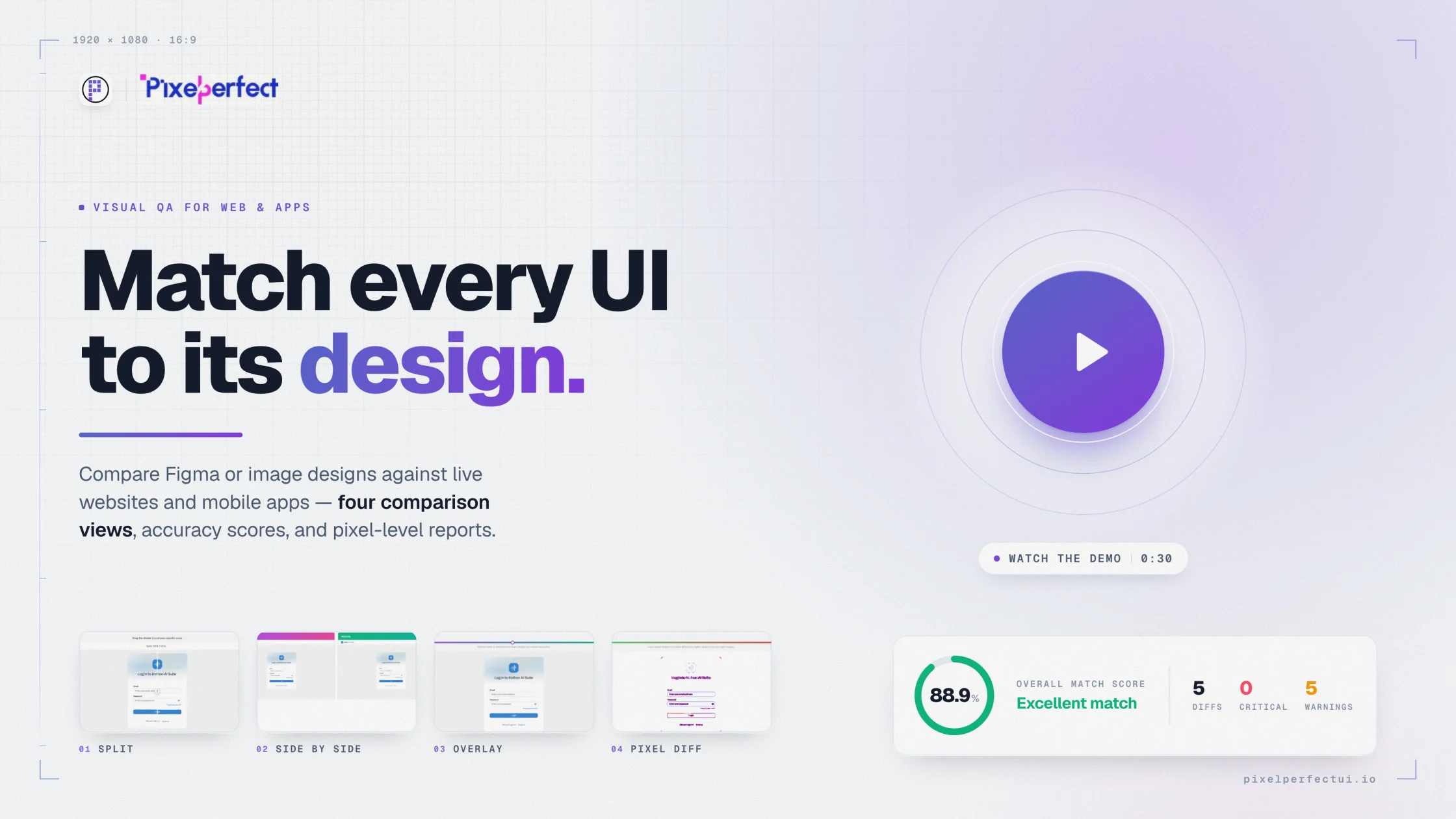
Pixel Perfect UI visual comparison report showing design and implementation evidence
Figma link or exported designLive URL or uploaded screenshotSplit, overlay, side-by-side, and pixel-difference viewsAccuracy score, issue details, and downloadable report
01

Start with the approved design state

Choose the exact Figma frame, component state, content, and viewport that define acceptance. Pixel Perfect UI can read a shared Figma URL through OAuth or a personal access token, and it also accepts exported PNG, JPG, JPEG, or SVG references.

A stable reference prevents teams from comparing against an outdated draft. Record intentional implementation changes before review so accessibility or technical decisions are not repeatedly reported as defects.

02

Capture the implementation under matching conditions

Enter a public website URL, configure a supported authenticated session, or upload a website screenshot. Match viewport dimensions, content, zoom, and crop before interpreting differences.

  • Wait for web fonts and images to load.
  • Use stable test data for dates, ads, and personalized content.
  • Compare important responsive states separately.
  • Use component capture when a full page contains unavoidable dynamic regions.
03

Inspect the difference instead of guessing

Use split view to inspect corresponding regions, overlay to spot alignment drift, side-by-side view for overall hierarchy, and pixel difference views to locate concentrated mismatch areas. The accuracy score is a navigation aid, not an automatic release decision.

Review typography, spacing, container widths, assets, borders, shadows, wrapping, and responsive transitions. Then classify each meaningful difference by impact and owner.

04

Turn review evidence into an actionable report

Keep the reference, implementation capture, viewport, comparison views, and issue details together. Developers receive reproducible evidence, designers can verify intent, and QA can rerun the same comparison after a fix.

Built for product delivery

Useful evidence for every reviewer

Frontend developers

Find CSS and layout drift while changes are still inexpensive.

QA teams

Create repeatable acceptance evidence for each viewport.

Designers

Review implementation fidelity against the approved frame.

Agencies

Make client review specific and reproducible.

Questions and answers

What teams ask before comparing

Can I compare a Figma design with a live website?

Yes. Select a Figma frame, enter the website URL, choose the matching viewport, and generate visual comparison views and a report.

Can I compare a private or staging website?

Supported authenticated sessions can prepare a private page before capture. You can also upload a screenshot when direct capture is not suitable.

Does a high accuracy score prove the website is correct?

No. The score summarizes pixel similarity. Teams still need to assess user impact, accessibility, interaction, dynamic content, and intentional differences.

Move from opinion to evidence

Compare the interface you built with the reference you approved.

Configure the source, capture, viewport, and comparison views in one visual QA workflow.

Try Pixel Perfect UI